Using the 'UK ETA' app
Information on using the app to apply for an electronic travel authorisation (ETA) to come to the UK.
Before you apply for an ETA using the ‘UK ETA’ app, you’llyou need:
- the passport
you’llyou will travel with-– not a photocopy or digital passport - an email address
- a credit card, debit card, Apple Pay or Google Pay
This app is only available in English.
Check if you can use the app on your phone
iPhone users
The ‘UK ETA’ app is available for iPhone 7 and newer models. You will need:
- an iPhone 7, 7 Plus or newer
- iOS 15 or later
-– to find the software version installed, go to Settings > General, then About - at least 179MB of storage space to install the app
- to be connected to 3G, 4G, 5G or WiFi
Download the app from the App Store.
Android users
You will need:
- Android 8.0 and above – you can find this in your settings
- at least 165MB of storage space to install the app
- to be connected to 3G, 4G, 5G or WiFi
- NFC (Near-Field Communication) so the app can scan your passport – you can find this in your settings. If you can use your phone to pay for things using contactless, this means it has NFC and you can use the app
Download the app from the Google Play Store.
Whichever phone you use, the app will need access to the camera. If the app does not request access, enable it in your settings.
Applying for someone else
You can use the app to apply for an ETA for someone else, if they’rethey are with you at the time you apply. This is because you’llyou haveneed to take a photo of them and scan their face.
IfTo you’reapply applying for someone who’swho is not with you, you should apply online.
You can only apply and pay for one application at a time.
Take a photo of your passport
You must take a photo of the same passport you’llyou will use to travel to the UK. It must be the original passport, not a photocopy.photocopy or digital passport.
Take a picture of the photo page of your passport using your phone’s camera. The full page must be insideinside. the frame, including the 2 lines of numbers and letters at the bottom of the page. Make sure your phone camera is focused on the text on the page.
The app will prompt you to adjust your phone to make sure you capture your passport correctly. These prompts will appear in a text box at the top of your screen.
Make sure you include the entire photo page in your picture.
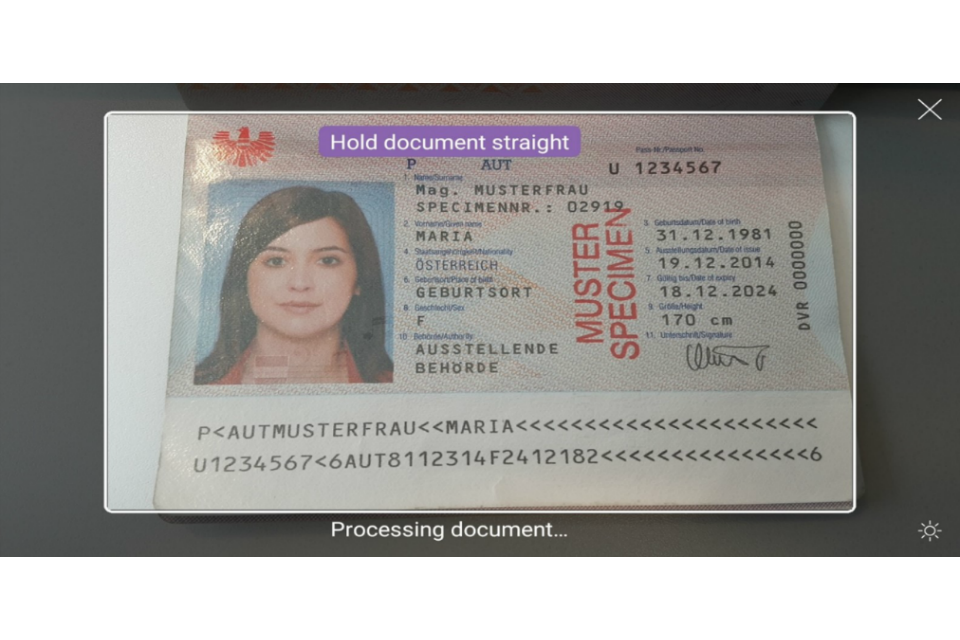
Try taking the photo of your passport at arm’s length if you’reyou havinghave problems.
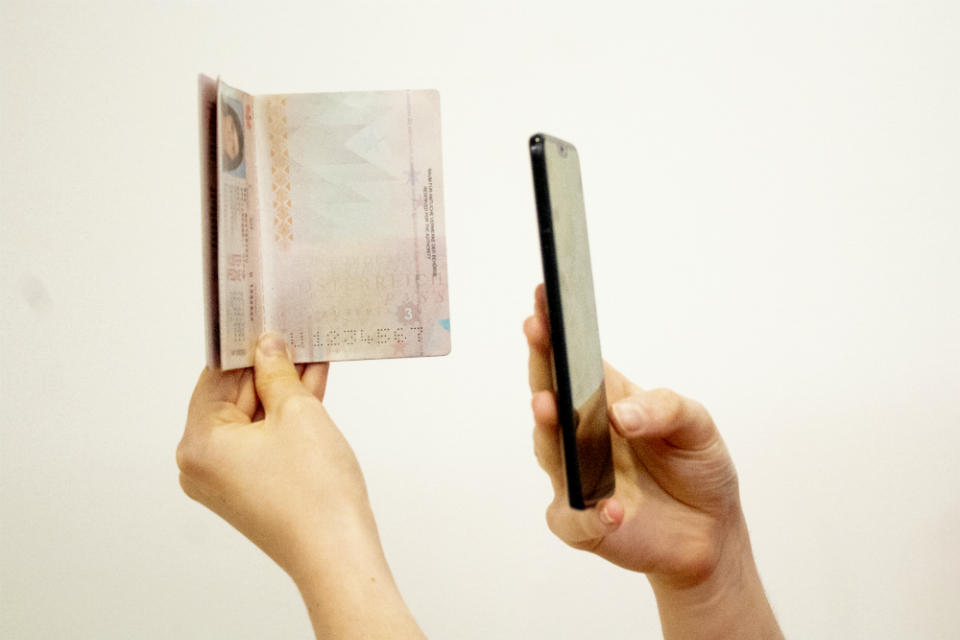
Scan your passport
If your passport has this symbol on the cover, it can be scanned by the app.

Remove any cases or covers from your passport and phone.
Place the phone on top of your passport. Aim the top of your phone with the middle of your passport.
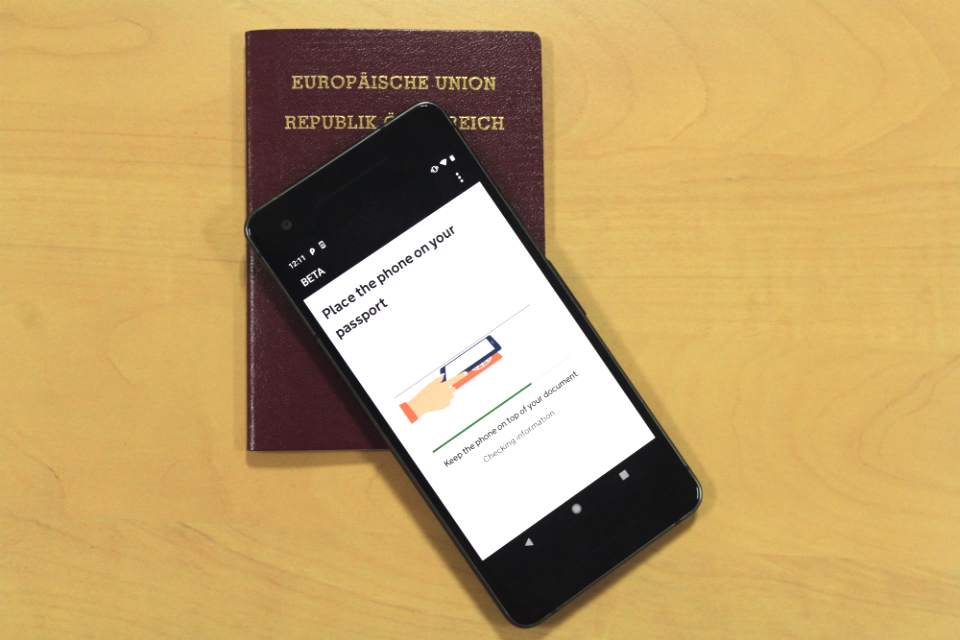
If the volume on your phone is turned up, you will hear a beep when your passport has been recognised.
If the app doesn’tdoes not recognise your passport, move your phone around the passport.
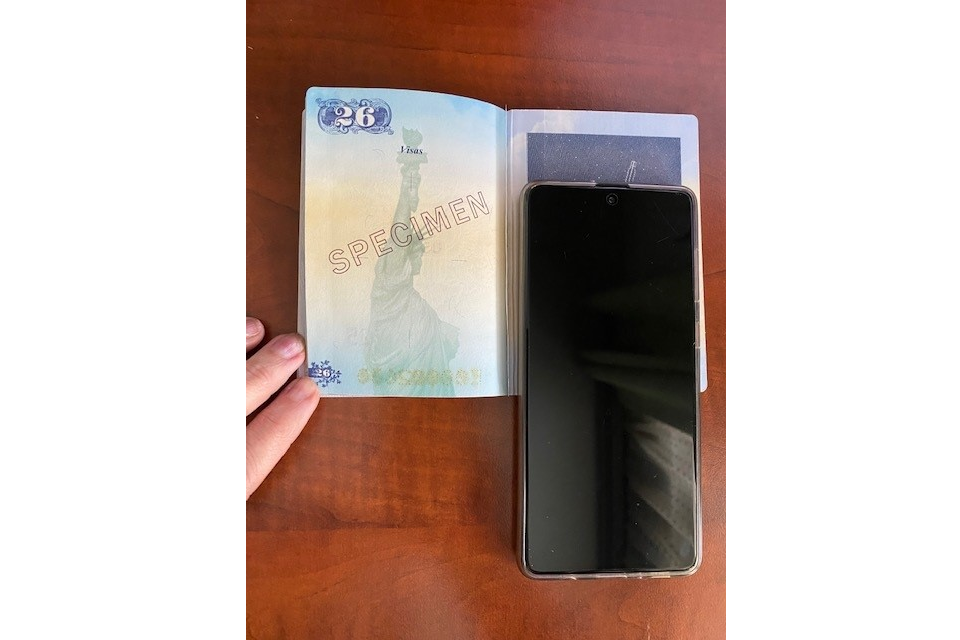
United States passports
If scanning the front of the passport does not work, place the phone on the inside of the back cover.
If your passport does not have the symbol, or the app cannot read it
The app will read your passport details from the photo of your passport.
Check these details carefully. If they do not match what it says on your passport, your application will be delayed or rejected.
Scan your face
Hold your phone’s camera in front of your face until the scanning is complete.
If you’reyou applyingapply for someone else, you need to scan their face.
If you’reyou are 9 or younger, you will not be asked to scan your face.
Take a photo of yourself
You must:
- be in even lighting, against a plain, light-coloured background
- keep your head straight and look directly at the camera
- have a neutral expression and make sure your eyes are open and visible
-– remove your glasses ifthere’sthere is any glare - include your head and shoulders (you can extend your arms or ask someone to take the photo for you)
You must not:
- wear a head covering (unless it is for religious or medical reasons)
- have any shadows, objects or people behind you
You can retake the photo before submitting it.
Complete your application
You’llYou need to answer questions about your:
- address
- job
- criminal history
- other nationalities, if you have any
If you’reyou are under 18, you’llyou need to give contact details for someone who has parental responsibility for you.
You’llYou then need to pay in the app.
You’llYou will get a confirmation email to say you’veyou submitted your application.
When you’llyou will get your ETA
We’llWe will send you an email when we’vewe mademake a decision on your ETA.
You’llYou will usually get a decision within 3 working days, but you may get a quicker decision.
Occasionally, it may take longer than 3 working days.
You can delete the app when you’veyou finishedfinish applying. Your ETA will be linked to your passport digitally, and you will not need to show anything else when you enter the UK.
If you need help using the app
If you have problems using the app, you can apply online instead.
You can contactalso usask using the about ETA if contactyou form.need help.
Updates to this page
Published 25 October 2023Last updated
-
Added a section on scanning United States passports. If scanning the front cover does not work, place your phone on the inside of the back cover.
-
iPhone users now need at least iOS 15 to download the app.
-
First published.
Update history
2026-04-09 10:00
An ETA can now be used to travel to Jersey, Guernsey and the Isle of Man, as well as the UK.
2026-03-20 11:51
Added links to videos on how to scan a passport biometric chip and how to take a suitable digital photo.
2026-03-11 10:34
‘Scan the passport’ section: added a link to the video ‘top tips on how to scan a passport biometric chip’.
2026-02-20 10:08
‘Take a face photo’ section: added a link to the detailed guide to taking a face photo for an application.
2025-11-17 15:29
Added more details about paying for your application and what happens afterwards.
2025-02-07 11:07
Updated the operating systems needed to install the app. iPhone users need iOS 16 or later, Android users need Android 12 or later.
2025-01-29 15:22
Added a section on scanning United States passports. If scanning the front cover does not work, place your phone on the inside of the back cover.
2024-03-13 17:00
iPhone users now need at least iOS 15 to download the app.
2023-10-25 10:00
First published.